
A customer’s accounts payable team moves offices and emails the account rep a new billing address. The rep updates the Salesforce account that afternoon. By the next morning the old address is back, because the sync treats Business Central as the master and wrote finance’s value over the edit. Nobody in finance ever saw the change. The October invoice goes to an office the customer has left, and $12,480 lands 9 days past due for a customer who did nothing wrong.
That is the cost of a source of truth that is only half built. Finance owning customer setup is the right call for most companies, because everything in the customer master prints on an invoice. But customers change, and sales usually hears first. Locking the fields in Salesforce does not stop customer changes. It moves them into a rep’s inbox, where finance never sees them.
This post is for the finance leader or IT head who has just connected Salesforce to Business Central and decided that finance owns the customer. Aonflow runs the flows below on its no-code integration platform, but the design holds whichever tool you use.
The five decisions that make finance ownership work:
- The master fields: list the fields finance owns in Business Central, and make every one of them read-only in Salesforce.
- The change request: give reps one way to propose a change to a master field, with the evidence attached.
- The finance review: route each request to the person who owns that field, with a review window.
- The publish-back: close a request only when Business Central’s new value shows in Salesforce.
- Period cutoff: decide which billing run a late change makes, and how to fix an invoice that went out with the old details.
What Does a Silently Reverted Edit Cost?
At minimum, a late payment. A reverted edit throws away a customer change that someone already captured. The rep heard it and typed it in. The sync then deleted it, correctly by its own rules, and told nobody.
The damage shows up weeks later as an invoice sent to the wrong office, or tax charged to a customer who sent an exemption certificate. By then the trail is cold. Finance sees a customer who didn’t pay. Sales sees a field it already fixed. Each side is right about its own screen.
The Master Fields: What Finance Owns in the ERP Customer Master
Before you set any permissions, write down the master fields. These are the fields finance owns in Business Central. The test is simple: if a field prints on an invoice or changes what the customer owes, it is a master field.
| Master field | Why finance owns it | What a wrong value costs |
|---|---|---|
| Legal name and bill-to address | It prints on every invoice | The customer’s accounts payable team rejects or misroutes the invoice |
| Invoice email | It decides where the bill goes | The invoice sits in an inbox nobody reads |
| Payment terms | It sets every due date | Reminders go out early, or cash comes in late |
| Tax status | It decides the tax on every line | You charge tax to an exempt customer, or miss it on a taxable one |
| Credit limit and blocked status | They are risk decisions | Sales books orders that finance won’t ship |
| Customer number | It is the ledger key | Payments land on the wrong account |
Everything else stays with sales: contacts, relationship notes, territory and the pipeline. This is stricter than the starting map in our complete guide to Salesforce and Business Central integration, which leaves the account name with sales. When finance owns setup, the legal name on the invoice moves to finance too.
Read-Only Is Half the Answer
Once the list exists, the tempting next step is to lock those fields in Salesforce and call the job done. Salesforce supports this directly, because field-level security can let a user read a field but not edit it (Salesforce field-level security). Locking is correct. It is also only half the design.
A locked field stops the rep from overwriting finance. It does not stop the customer from changing. The rep still gets the email about the new address, and with nowhere to put it, the change ends up in a forwarded message that finance may never find. The other common instinct, two-way sync, is worse. Whichever system saved last wins, so the master is no longer the master.
The Rule: when finance owns the customer master, a change heard in sales is a request, not an edit. Salesforce proposes, finance decides in Business Central, and only the master publishes back.
That rule splits one vague job into three flows, each with its own role. The request flow proposes. The finance review decides. The publish-back flow publishes, and Salesforce consumes.
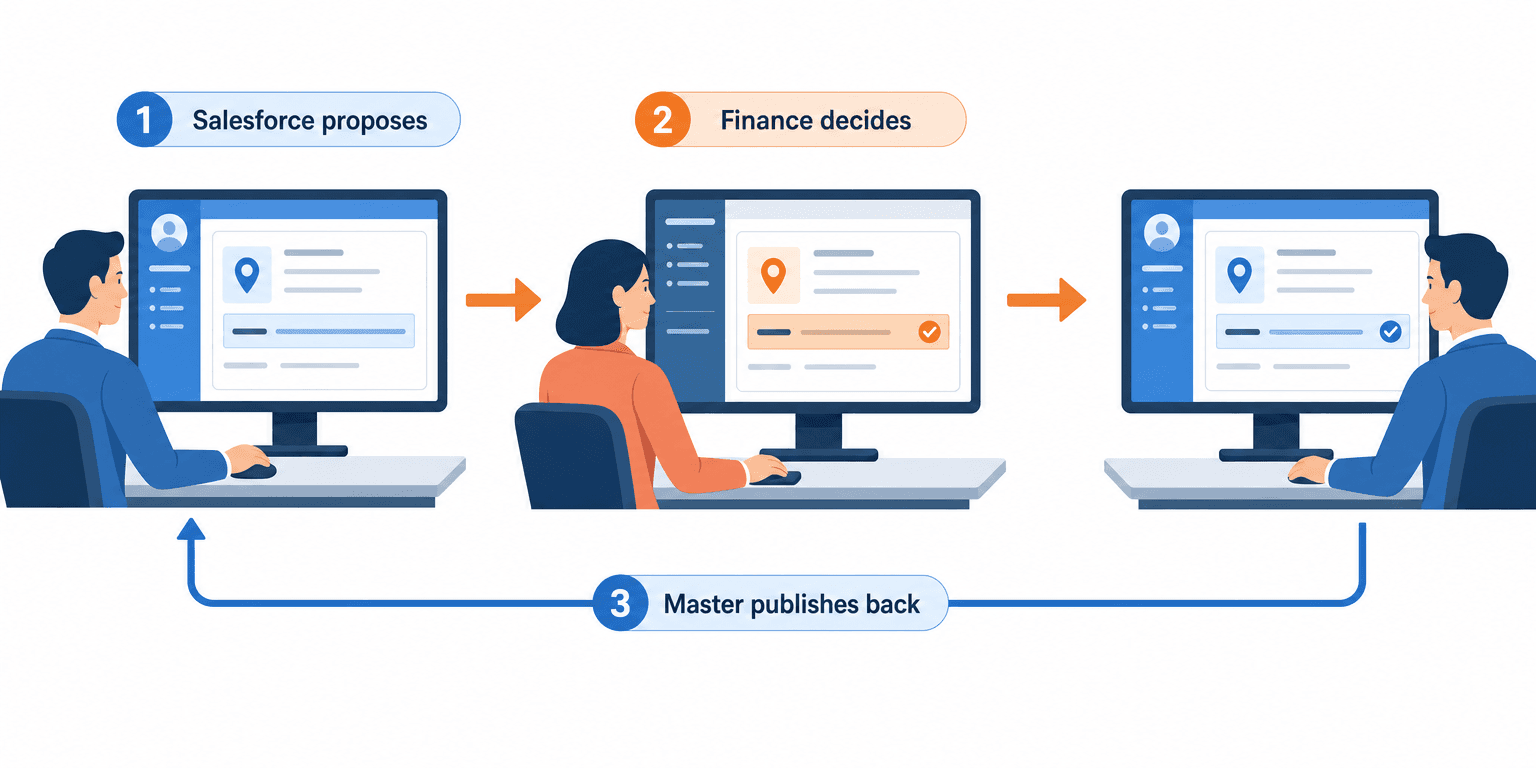
The Change Request: How Sales Proposes a Change
A change request is a small record the rep fills in on the account. It sits next to the locked fields, not in place of them. It should carry five things:
- The field and the new value, for example the new bill-to address.
- The evidence, such as the customer’s email or a tax exemption certificate.
- The date it takes effect, because “from our November invoice” is different from “now”.
- Who asked, so finance knows which rep to call.
- A status the rep can read: submitted, approved, rejected, sent back or done.
New customers use the same lane. The rep submits a setup request, and finance creates the customer card in Business Central.
The Finance Review: Approve, Reject, or Send Back
Each request goes to the person who owns that master field, not to a shared inbox. A review ends in one of three ways. The owner approves and updates the customer card, rejects with a reason, or sends the request back for missing evidence.
| Change type | Reviewer | Review window | Evidence to require |
|---|---|---|---|
| Bill-to address or invoice email | Accounts receivable lead | 1 business day | The customer’s written request |
| Payment terms | Controller | 2 business days | The signed agreement or amendment |
| Tax status | Tax or accounting lead | 2 business days | A valid exemption certificate |
| Legal name | Controller | 2 business days | The customer’s written notice |
Business Central can hold the review step itself. Its approval workflows can request approval of a field change while keeping the old value, and the new value doesn’t apply until the request is approved (Microsoft Learn: use approval workflows). The integration’s job is the two legs around that step: getting the request in, and getting the answer back out.
Agree the review windows with finance before you build anything, and write them down. A request lane with no deadline is just a slower inbox.
The Publish-Back: When a Request Is Closed
It is natural to call a request done when finance clicks approve. It isn’t done until the rep can see the new value. The publish-back flow sends the changed master fields from Business Central to the Salesforce account in near real-time, then marks the request done only when the two values match.
That check catches the quiet failure. If the publish-back fails, the request stays open and someone gets an alert, instead of the rep reading the old address for another month.
Period Cutoff: Which Invoice Gets the Old Details
A change applies from the moment finance saves it in Business Central. An invoice already posted keeps the details it was posted with. Business Central lets you edit only certain fields on posted sales documents, and for fields that affect the audit trail you reverse or undo the posting instead (Microsoft Learn: posting sales documents).
So set two rules before month end:
- The normal rule: a request approved before the billing run applies to that run. A request that misses your deadline (for example, noon two business days before the run) makes the next cycle, unless the rep flags it urgent and finance agrees.
- The catch-up rule: if the flow was down over month end, finance works the open requests in submission order before the next billing run. An invoice that went out to the old address is re-sent from the corrected card. Wrong terms or tax status are fixed in the open period, never by reopening a closed one. For an unpaid invoice that isn’t fully shipped, Business Central’s Cancel and Correct actions post a corrective credit memo for you (Microsoft Learn: correct or cancel unpaid sales invoices), and the allowed posting dates keep users from posting into the closed month, unless a user-level exception in User Setup allows it (Microsoft Learn: specify posting periods).
How Aonflow Runs the Customer Master Between Business Central and Salesforce
Aonflow connects Salesforce and Business Central through pre-built connectors for both, and runs the three flows above without code.
Aonflow lets teams:
- Carry the change request into finance with workflow automation, so the rep’s new bill-to address reaches the accounts receivable lead as a request, not a forwarded email.
- Publish the master back in near real-time, so the rep sees finance’s saved value on the account and the request closes on a match, not on a click.
- Alert on a failed publish-back with monitoring and alerts, so a run that left Salesforce out of step with Business Central reaches the flow owner.
- Recover a failing publish-back with self-healing flows, so one bad run doesn’t leave the old address showing.
- Control who can change the request and publish-back flows with role-based access control, and keep audit trails of what each flow carried.
- Line up the master fields quickly with AI-assisted mapping, which reduces integration time by more than half when you map Business Central’s customer fields to the Salesforce account.
A Worked Example: The Address Change That Reverted Twice
- Tuesday, September 22. The customer’s accounts payable team emails the rep a new address and a new inbox for invoices. The rep updates the Salesforce account.
- Wednesday, September 23. The sync writes Business Central’s values over the edit. The old address is back, and nobody is told.
- Monday, September 28. The rep notices and types the change in again. The next sync reverts it again.
- Thursday, October 1. Business Central posts the monthly invoice for $12,480 on net 30 and sends it to the old inbox.
- Monday, November 9. The invoice is 9 days past due. Collections calls, and the customer says it never got an invoice. Finance updates the card and re-sends it.
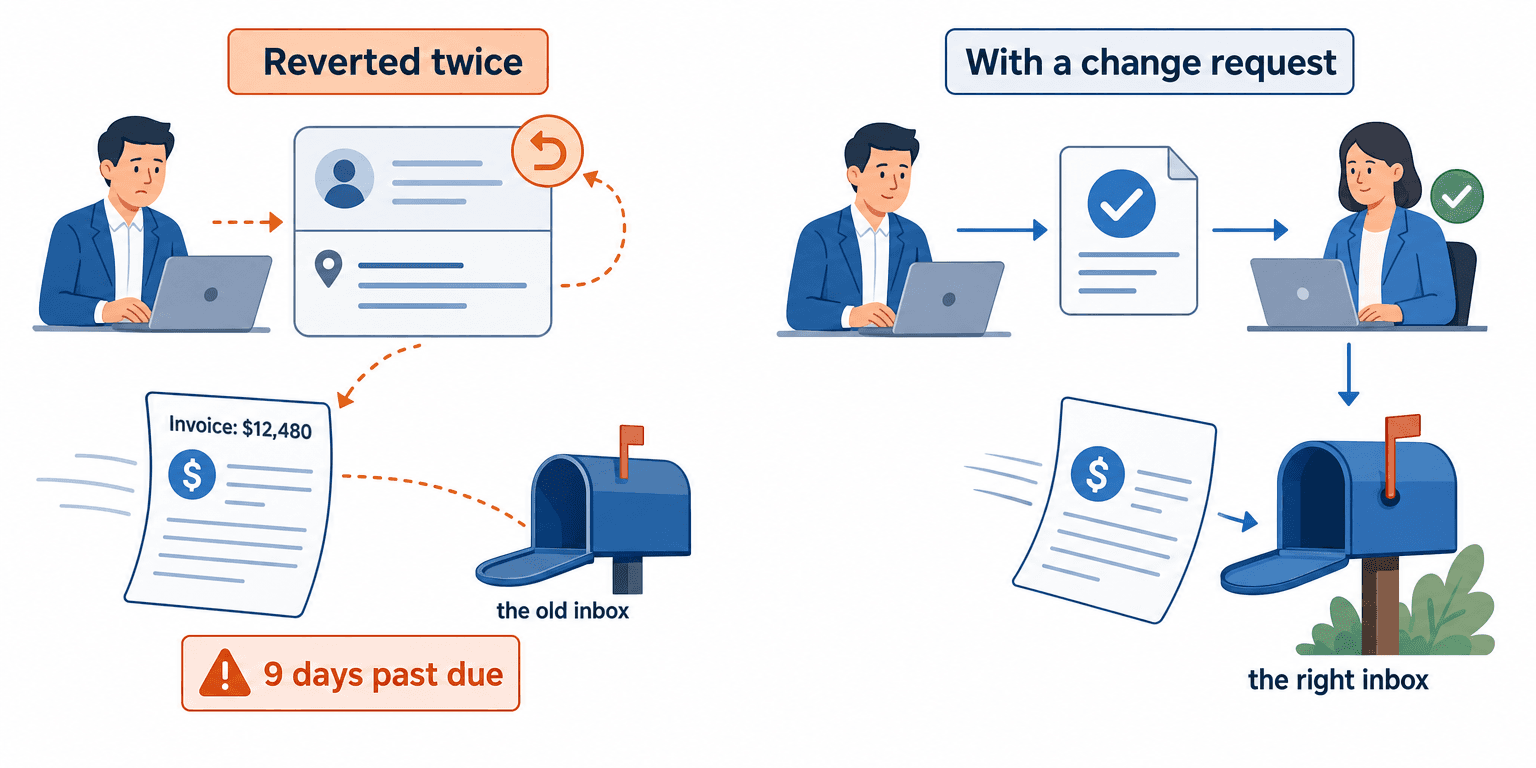
The rep was right twice and lost both times. Now run it again with a change request. The September 22 email becomes a request with the customer’s message attached. The accounts receivable lead approves it on September 23, the publish-back updates Salesforce, and the October 1 invoice goes to the right inbox.
Who Owns This When It Breaks
Who owns the flow? The finance systems owner (often the controller) owns the request flow and the publish-back flow. The Salesforce admin owns the field permissions that keep the master fields read-only.
Who gets alerted when it fails? The accounts receivable lead, when a request passes its review window. The flow owner, when a publish-back fails. The rep, when a request is rejected or sent back.
Where do failed records wait for review? In the customer change review queue that finance works from. A failed publish-back stays open there with its error until Salesforce and Business Central agree.
| Escalation trigger | Who acts |
|---|---|
| A change request is open past its review window | Accounts receivable lead |
| A request for a master field misses the deadline for the billing run | Accounts receivable lead decides: this run or the next |
| After approval, Salesforce still shows a value that differs from Business Central | Flow owner |
| Someone edits a master field directly in Salesforce | Salesforce admin closes the permissions gap |
FAQ
If finance owns customer setup, can sales still create a customer?
Sales can’t create the customer, but it can start one. The rep submits a setup request, finance creates the customer card in Business Central, and the publish-back writes the customer number to the Salesforce account. The rep collects the details. Finance decides them.
Can we use Business Central’s approval workflows instead of an integration?
Use both. Business Central’s approval workflows cover new customers as well as field changes, but they work inside Business Central. They don’t carry a request in from Salesforce, and they don’t tell the rep the change is done. The integration handles those two legs.
Which fields should stay editable in Salesforce?
The ones that describe the relationship, not the bill: contacts, notes, territory and the pipeline. If a field doesn’t print on an invoice or change what the customer owes, sales keeps it.
Should we turn on Business Central’s change log for the master fields?
Yes. The change log records who changed a field, when, and the old and new values. Microsoft recommends tracking only the important fields, because logging affects performance and database size. Field monitoring can also email a named person when a sensitive field changes (Microsoft Learn: audit changes).
Conclusion
Making the ERP customer master the source of truth takes five decisions, not one. Name the master fields. Give sales a change request instead of an edit. Route the finance review to each field’s owner, with a window. Close each request on the publish-back, not on the approval. And settle period cutoff before month end, not during it. Before you lock a single field, ask your reps for last quarter’s customer changes and count how many finance never saw.
Get Started with Aonflow iPaaS – Free Trial Available!
Build and deploy your integrations at zero cost. No credit card required!